Add or fix a trip
Tap +, choose Add a trip, pick the country and set the dates. Open any trip to change it.
Add a trip
- Tap + and choose Add a trip.
- Pick the country. For the United States you can also pick the state.
- Set the dates: tap Arrive and Leave to pick them on a calendar, or drag the ends of the bar on the timeline at the top. Drag the middle of the bar to move the whole trip.
- Tap Add trip.
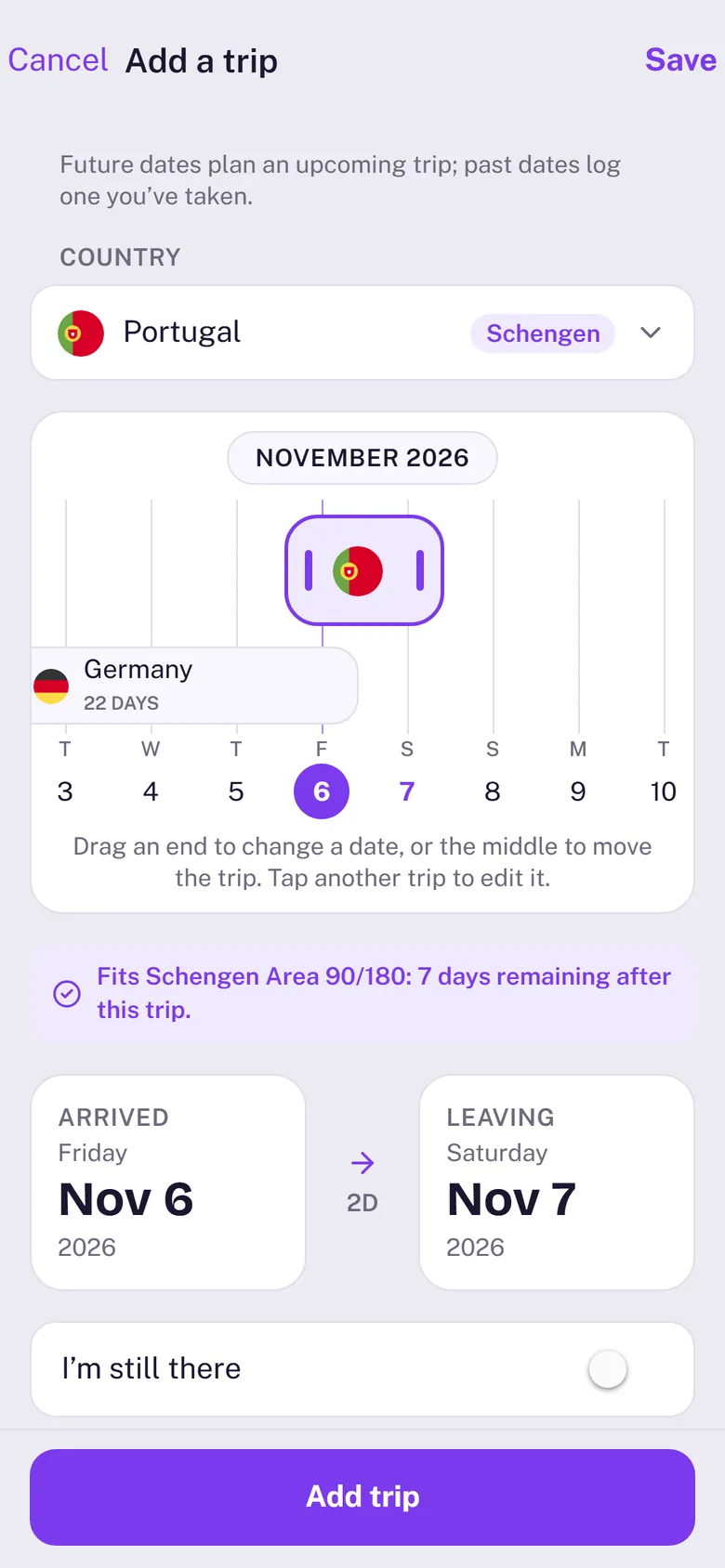
Dates after today make it an upcoming trip, and your trackers show what it will do before you go. As you drag, the sheet tells you whether the trip fits each tracker or how many days it goes over.
Still there?
On a trip that has started, choose I’m still there when you pick the leave date. The trip keeps growing each day until you set a leave date. Dragging the end of the bar sets one for you (you can undo it).
Change or delete a trip
- Change it: open the trip in Trips, tap Edit and change the dates or the country.
- Delete it: touch and hold the trip in Trips and choose Delete, or swipe it to the left. You can undo straight away.
- A photo or imported trip you change becomes yours, so a later re-sync never overwrites it.
Overlapping trips
When a new trip overlaps a trip in another country, Make room in overlapping trips (on by default) shortens or splits the other trip around it when you save, and the sheet says what will change first. A shared travel day stays in both countries, because you were in both. Delete the trip later and the days go back.
More details
Under More details: the reason for the trip (holiday, work, family), a note, and residence permit or long-stay visa. Days on a permit don’t use up visitor limits such as the Schengen 90 days, but they still count for tax.
How a day is counted
A day counts in a country if you were there at any time that day, so the day you arrive and the day you leave both count, and a travel day counts in both countries. Stays show as 35D for 35 days.