Import a file
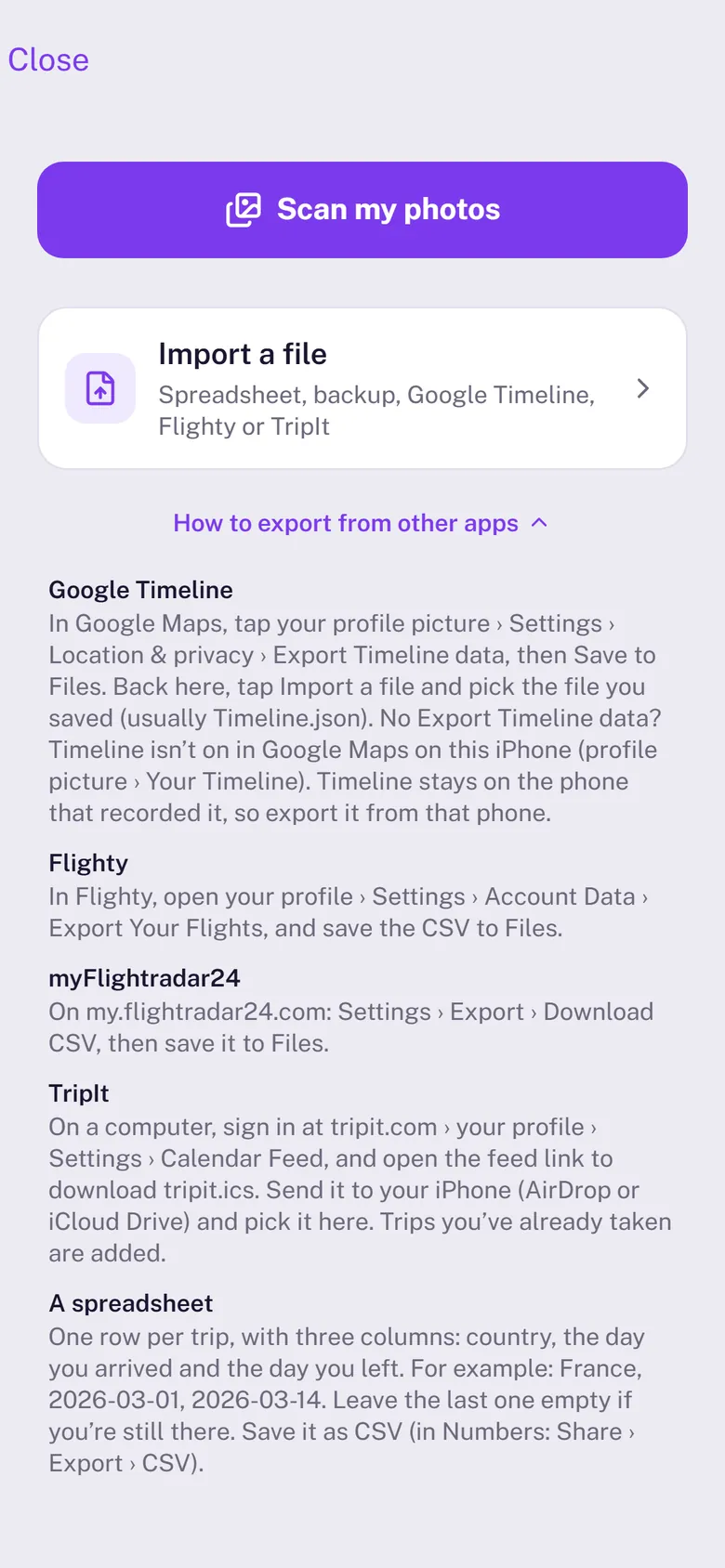
Stamp90 reads exports from Google Timeline, Flighty, myFlightradar24 and TripIt, plus spreadsheets and Stamp90 backups. Save the file to your iPhone, then pick it.
Import the file
- Go to Settings › Import.
- Tap Import a file and choose it in Files. Stamp90 works out what kind of file it is.
- Review the trips and tap Add N trips. Trips you’ve added yourself are never replaced, and importing the same file twice adds nothing new.
Google Timeline (Google Maps on iPhone)
- In Google Maps, tap your profile picture › Settings › Location & privacy › Export Timeline data.
- Choose Save to Files. The file is usually called Timeline.json.
- In Stamp90, tap Import a file and pick it.
No Export Timeline data? Timeline isn’t turned on in Google Maps on that phone. Timeline is kept on the phone that recorded it, so export it from that phone.
Flighty
In Flighty, open your profile › Settings › Account Data › Export Your Flights and save the CSV to Files. You’re counted in the country you landed in until your next flight.
myFlightradar24
On my.flightradar24.com, go to Settings › Export › Download CSV and save the file to Files on your iPhone.
TripIt
On a computer, sign in at tripit.com, open your profile › Settings › Calendar Feed and open the feed link to download tripit.ics. Send it to your iPhone with AirDrop or iCloud Drive and pick it in Stamp90. Trips you’ve already taken are added.
A spreadsheet
One row per trip, with three columns: the country, the day you arrived and the day you left, for example France, 2026-03-01, 2026-03-14. Leave the last one empty if you’re still there. Save it as CSV (in Numbers: Share › Export › CSV).
A Stamp90 backup (.json) is different: it replaces everything on this iPhone after you confirm. See Backup and a new iPhone.