Import from your photos
Stamp90 can rebuild years of trips from the places your photos were taken, in a few minutes, without anything leaving your iPhone.
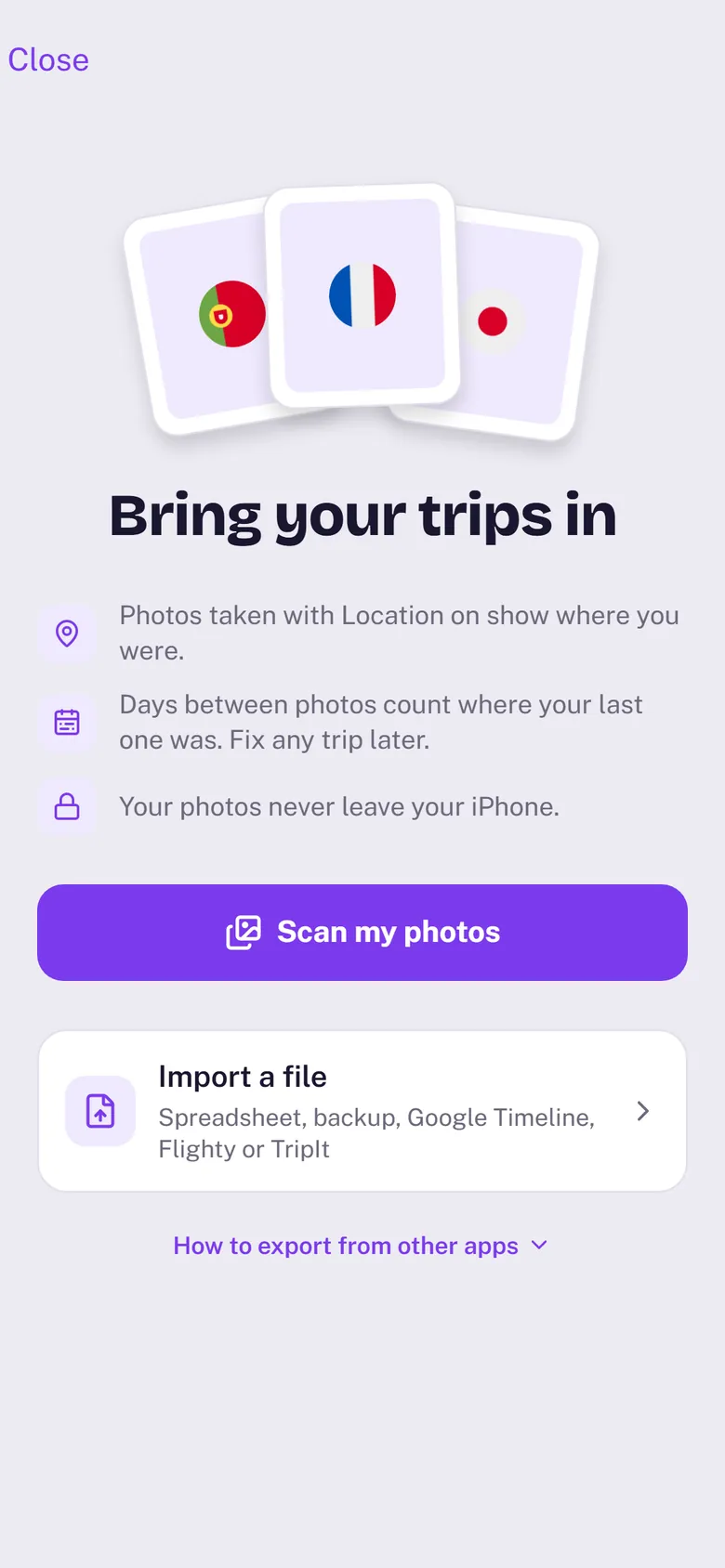
Scan your photos
- Go to Settings › Import (or the import step during setup).
- Tap Scan my photos and allow access to your photos.
- Keep Stamp90 open while it reads. A big library can take a few minutes; the screen stays on.
- Check the trips it found. Untick any that are wrong, then tap Add N trips. You’ll see how each tracker changes before anything is saved.
What to expect
- Only photos with a location help. If Location was off for the Camera when you took them, they have no place in them. Check iPhone Settings › Privacy & Security › Location Services › Camera so future photos are found.
- Days between photos are filled in. You’re counted where your last photo was until a photo shows you somewhere else. If you set a home country, weeks abroad with no photos at all count as home instead.
- Screenshots and saved pictures are skipped. So are photos that look like they came from someone else’s phone, such as pictures sent in a message.
- It’s a starting point. A trip with very few photos is marked in the review so you can check it.
Limited Access
If you chose Limited Access when iPhone asked, Stamp90 only sees the photos you picked, so trips in the others are missing. To scan everything, open iPhone Settings › Apps › Stamp90 › Photos and choose Full Access, then scan again.
Re-sync after a trip
Back from somewhere? Tap Re-sync from photos on the same screen. It replaces only the trips that came from photos. Trips you added yourself, and photo trips you’ve edited, stay exactly as they are, and reasons and notes carry over.
A trip that isn’t yours
Open the trip and tap Not where I was. The trip goes, and those photos are left out of every later scan. To bring them back, tap places left out · Manage on the import screen and choose Show again.