Getting started
Stamp90 counts the days you spend in each country and tells you, for every rule you care about, how many days you have used, how many remain and when you need to leave. Here is the tour, in seven steps.
Tell Stamp90 about you
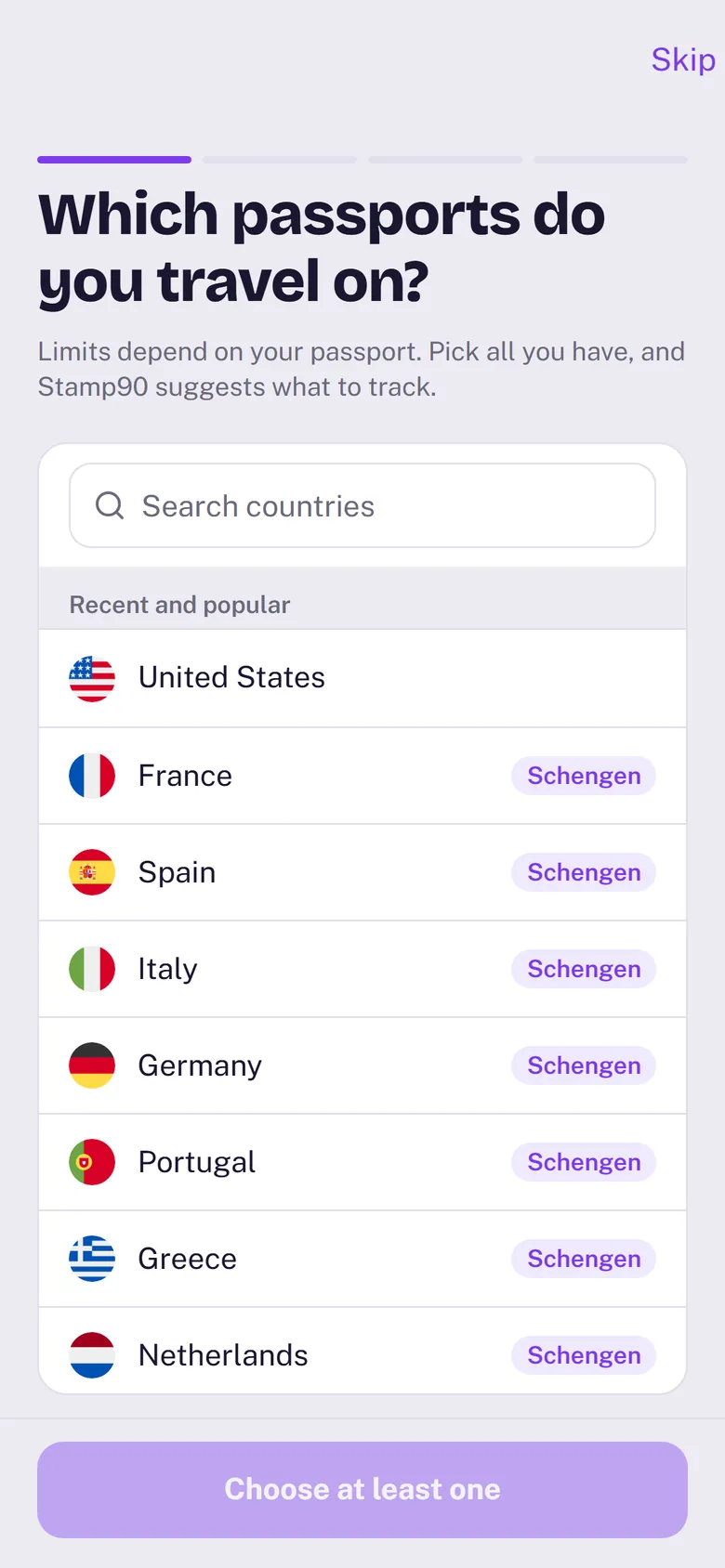
The first time you open Stamp90 it asks two things: which passports you travel on and where you live. That is how it knows which visitor limits apply to you and which days count as days at home. No home? Pick I’m a nomad.
You can change both later in Settings › You.
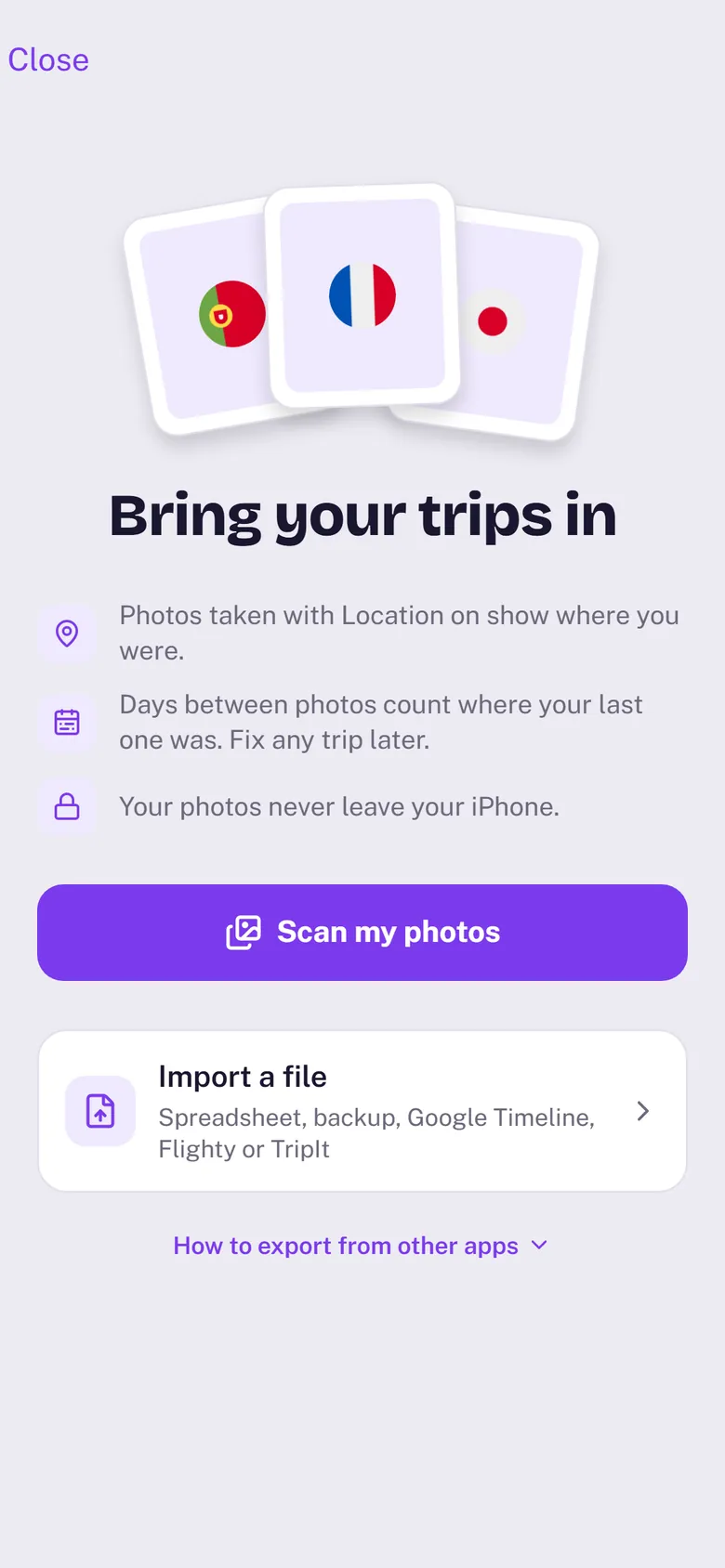
Bring your trips in
Tap Scan my photos and Stamp90 rebuilds your travel history from where your photos were taken. It all happens on your iPhone. You can also import a file from Google Timeline, Flighty, TripIt or a spreadsheet.
Find it any time in Settings › Import. More in Import from your photos and Import a file.
Add or fix a trip
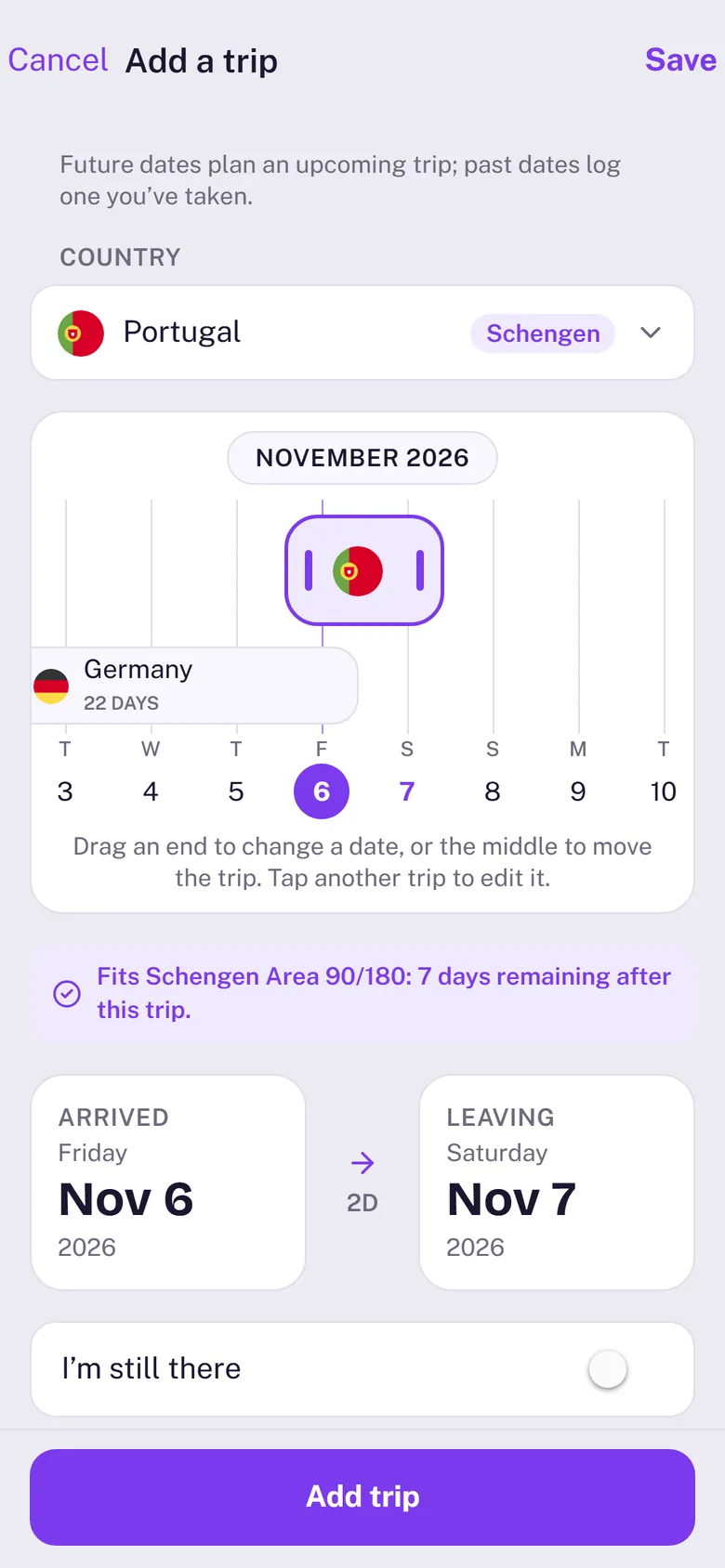
Tap + and choose Add a trip. Pick the country, then set the dates on the two tiles or drag the ends of the bar on the timeline. Dates in the future plan an upcoming trip; past dates log one you’ve taken.
Open any trip in Trips to change it. See Add or fix a trip.
Track what matters to you
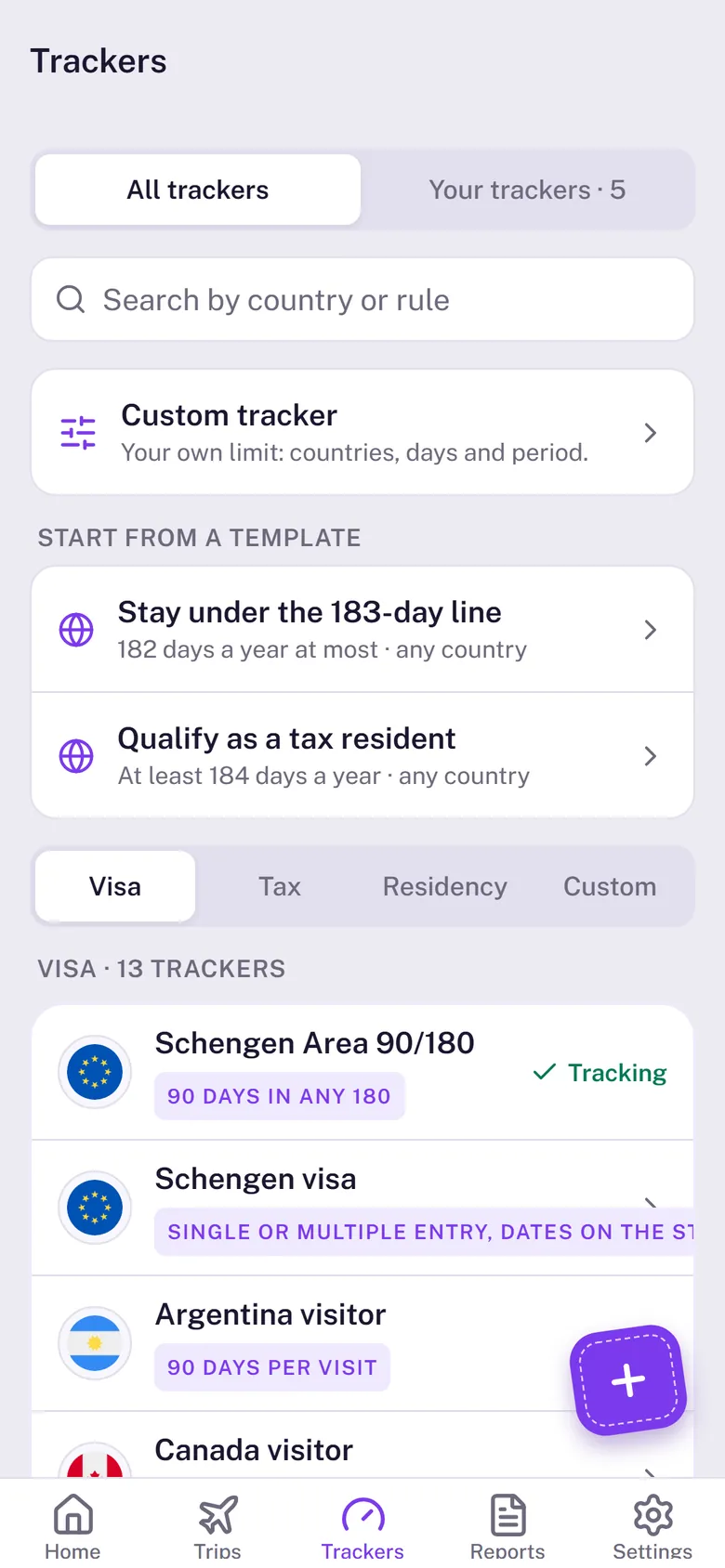
A tracker is one rule counted against your trips: the Schengen 90/180, Thailand’s 30 days per visit, Spain’s 183-day tax test, the days away allowed for UK settlement, and many more. Open the Trackers tab, search by country, tap one and then Start tracking.
Nothing fits? Tap Custom tracker to set your own countries, limit and period.
Read your cards
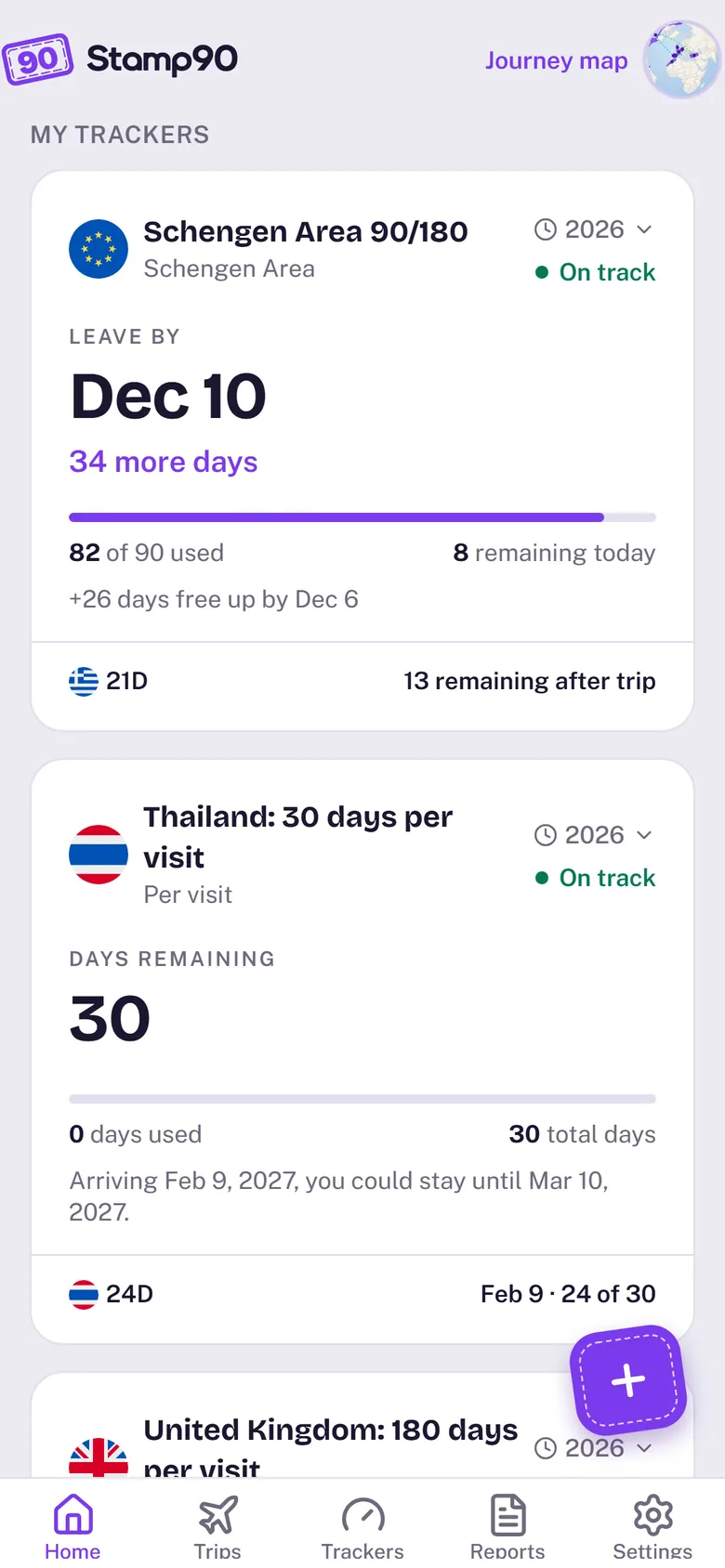
Each tracker is a card on Home, and each card leads with its answer. While you’re in the Schengen Area it says Leave by and a date; when you’re not, Go today, stay and how many days you would get. Under it: days used and days remaining, and the next days that free up.
Tap a card to see exactly which days it counts. See What the cards mean.
Turn on alerts
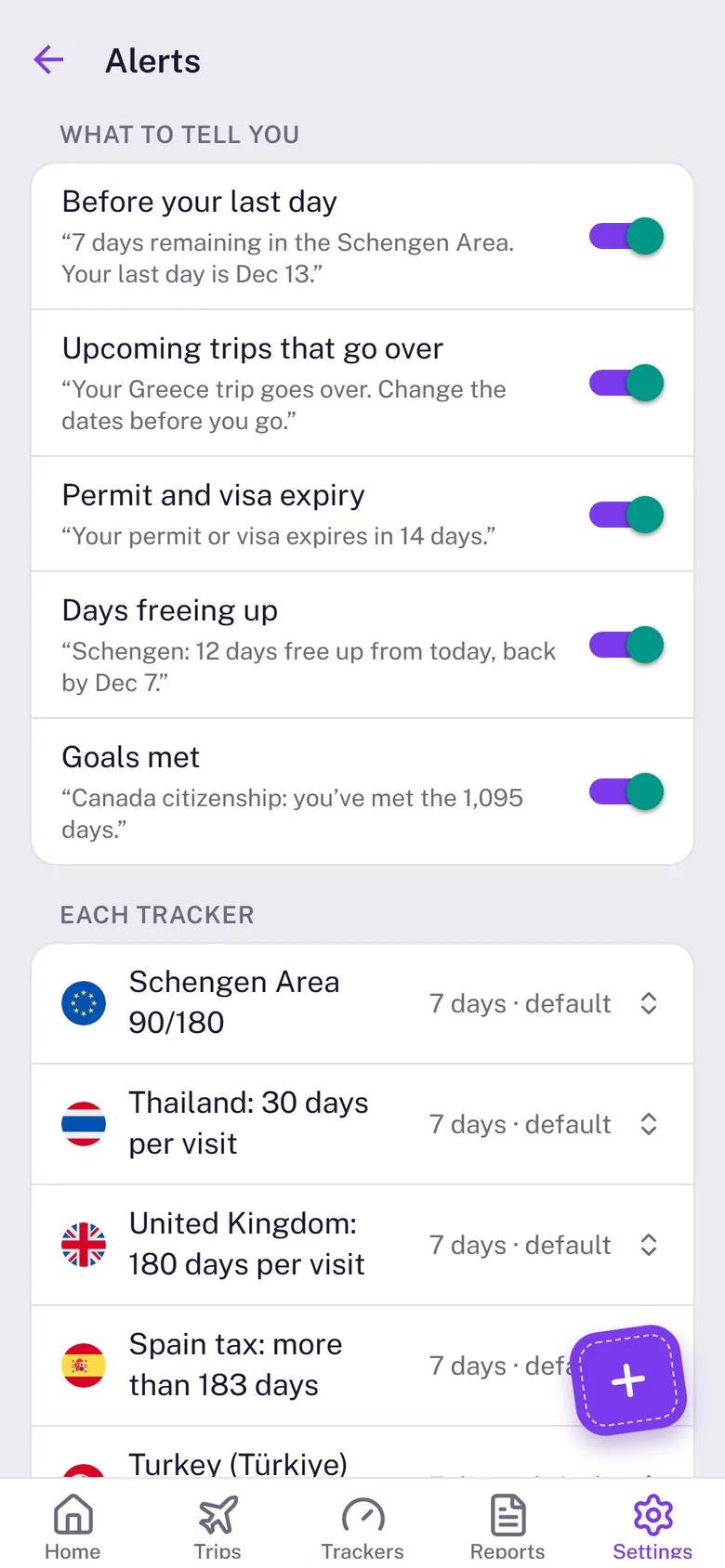
Stamp90 can remind you before your last day, warn you when an upcoming trip would go over, and tell you before a permit or visa expires. Turn them on in Settings › Alerts, or with the bell on any tracker’s page. Alerts are free and are scheduled on your iPhone.
See Alerts.
Make a report when you need one
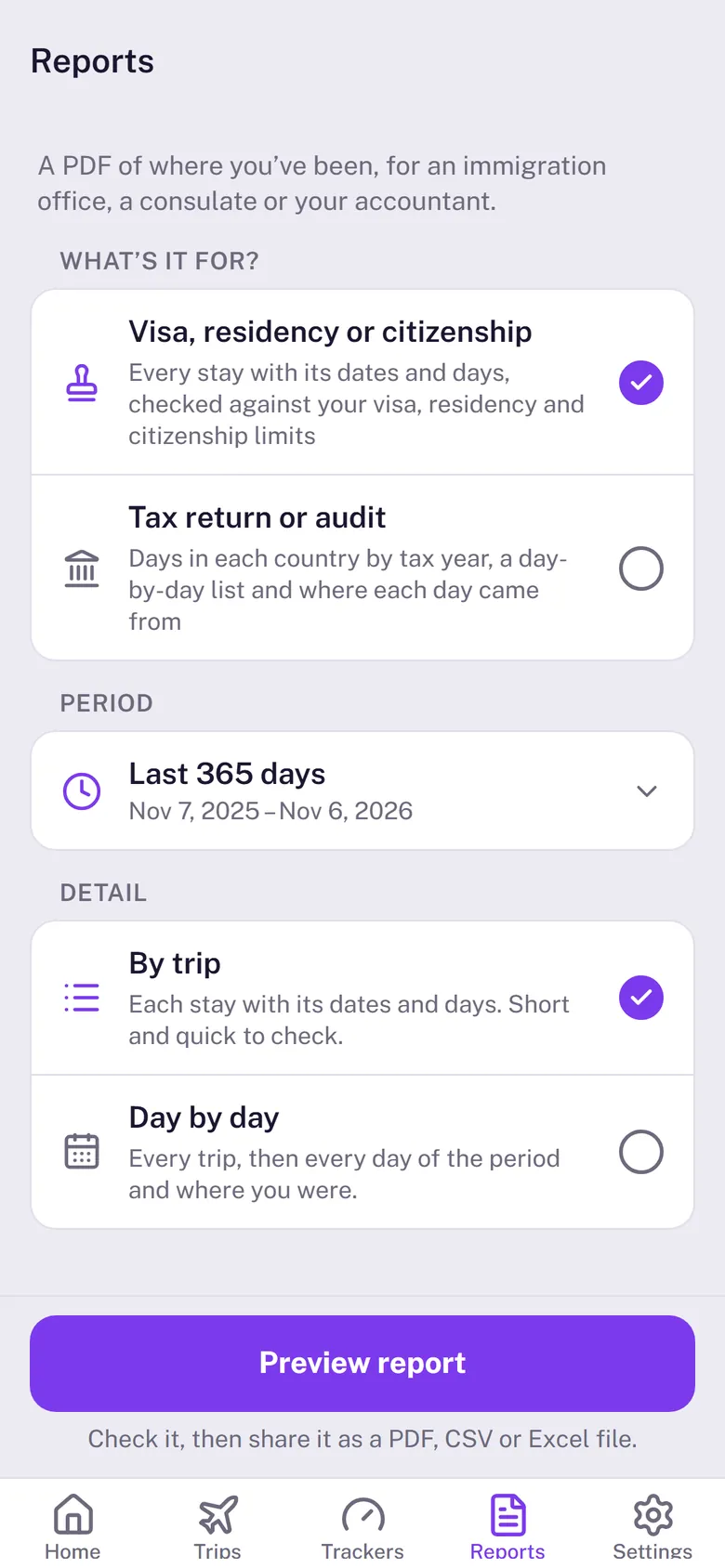
The Reports tab makes a clean record of your days for a visa or residency application, or for your tax return. Choose what it’s for and the period, preview it, then share it as a PDF, CSV or Excel file.
See Reports and exports.
The screenshots show sample trips.
Prefer to watch? Settings › Help › Watch the tour plays a two-minute video.